Use your phone as a mouse for your PC
Virtual Mouse turns your Android phone into a wireless mouse, touchpad, joystick, air mouse and presentation remote for Windows. Connect over Wi-Fi with a QR code. No Bluetooth or USB receiver needed.
- Free
- Works over Wi-Fi
- Windows 10 & 11
- 4 control modes
Features
A wireless mouse, touchpad and remote in one app
Pick the control style that fits what you are doing, from browsing on the couch to giving a presentation.
Touchpad with gestures
Turn your phone screen into a laptop-style trackpad. Tap to click, use two fingers to scroll, and move the cursor with smooth, low-latency tracking.
Joystick + keyboard
Steer the pointer with an on-screen joystick and type on your PC with the built-in virtual keyboard. Handy from the sofa or across the room.
Air mouse (gyroscope)
Point your phone like a laser pointer. The gyroscope translates hand movement into precise cursor movement on the big screen.
Presentation remote
Move through PowerPoint, Google Slides or PDF slides wirelessly. Stand up, walk around, and stay in control of your talk.
Adjustable sensitivity
Fine-tune pointer speed so the cursor feels exactly right on any screen size, from a laptop to a 4K TV.
Connect by QR code
No pairing codes or IP addresses to type. Scan the QR code shown by the Windows app and you are connected in seconds.
How it works
Connect your phone to your PC in three steps
Setup takes about a minute. Your phone and computer just need to be on the same Wi-Fi network.
Install on both devices
Get Virtual Mouse from Google Play on your Android phone and install the free Windows app on your PC.
Scan the QR code
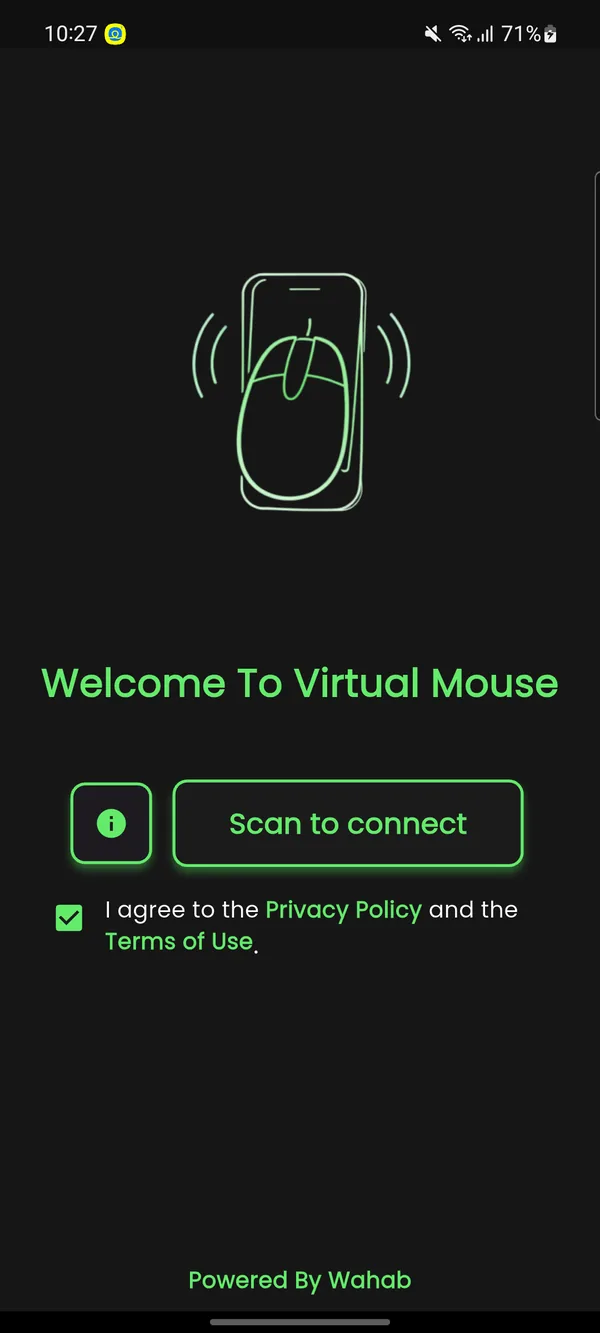
Open the Windows app to show a QR code, then tap Scan to connect on your phone.
Choose a mode and control
Pick touchpad, joystick, air mouse or presentation mode and start moving your cursor.
See it in action
Watch the phone mouse at work
This short demo shows the touchpad, joystick and gyroscope modes controlling a Windows PC in real time.
FAQ
Frequently asked questions
Is Virtual Mouse free?
Yes. Virtual Mouse is free to download on Google Play and the Windows companion app is free too. The Android app shows a few ads to support development.
Do I need Bluetooth or a USB receiver?
No. Your phone and PC talk over your Wi-Fi network. Just make sure both devices are connected to the same Wi-Fi.
Which computers are supported?
The desktop companion app runs on Windows 10 and Windows 11. The mobile app runs on Android phones.
How do I connect my phone to my PC?
Install the Windows app and open it. It shows a QR code. Open Virtual Mouse on your phone, tap Scan to connect, and point the camera at the QR code.
Is my data sent to the internet?
Your mouse movements, clicks and key presses travel directly between your phone and your PC over your local network. Read the privacy policy for details.
Can I use it as a presentation clicker?
Yes. Presentation mode lets you move to the next or previous slide from your phone, so you can walk around while presenting.
The cursor moves too fast or too slow. What can I do?
Open the sensitivity settings inside any mode and drag the slider until the speed feels right.
Control your PC from your phone today
Download Virtual Mouse for Android, install the Windows app, and scan to connect.